Organizational structure
The organizational structure not only determines the shape of the organization reflected in the Action Audit system but also affects the user’s access to specific resources. Assigning a user to a specific organizational cell in the structure defines the range of available resources (e.g., action plans, audits, attachments, etc.), while roles determine the type of access: read-only or read and modify.
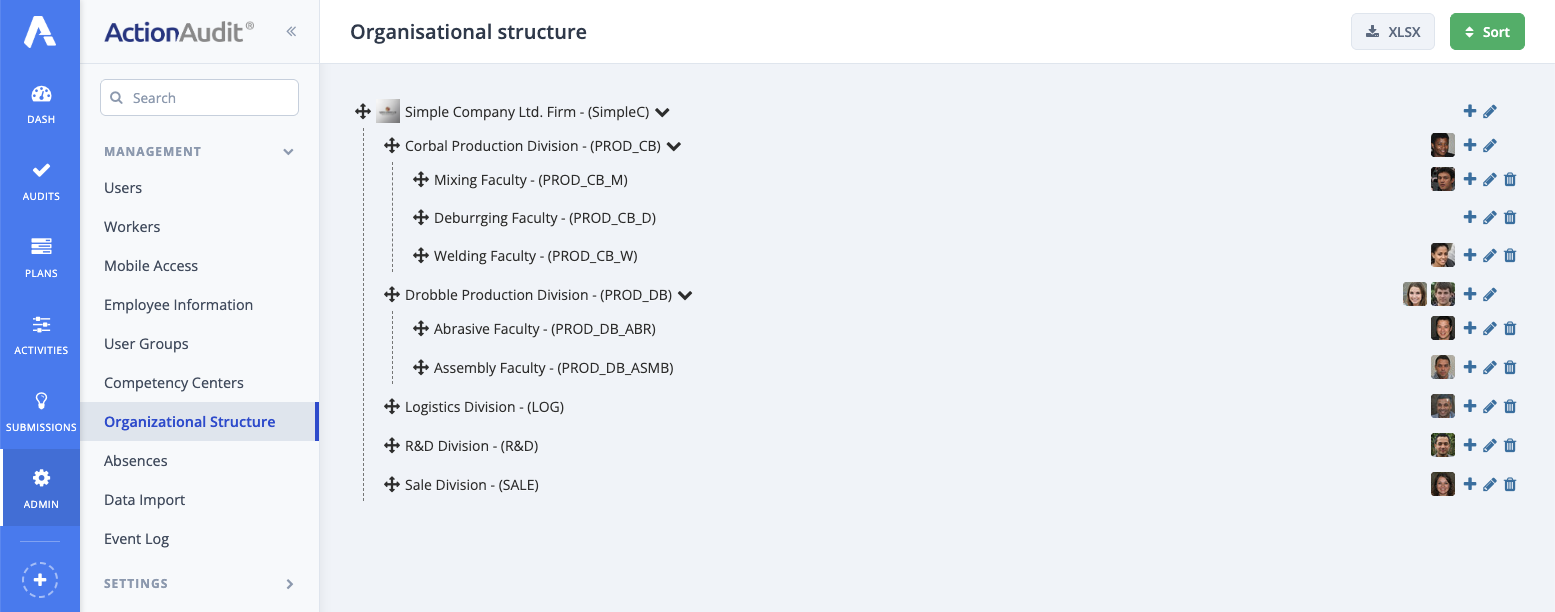
Below is an example of an organizational structure. A user assigned to a specific cell will have access to resources from that unit and all its subordinate cells. For example, a person assigned to the Corbal production division will have access to resources related to the Deburring, Mixing and Welding faculties.
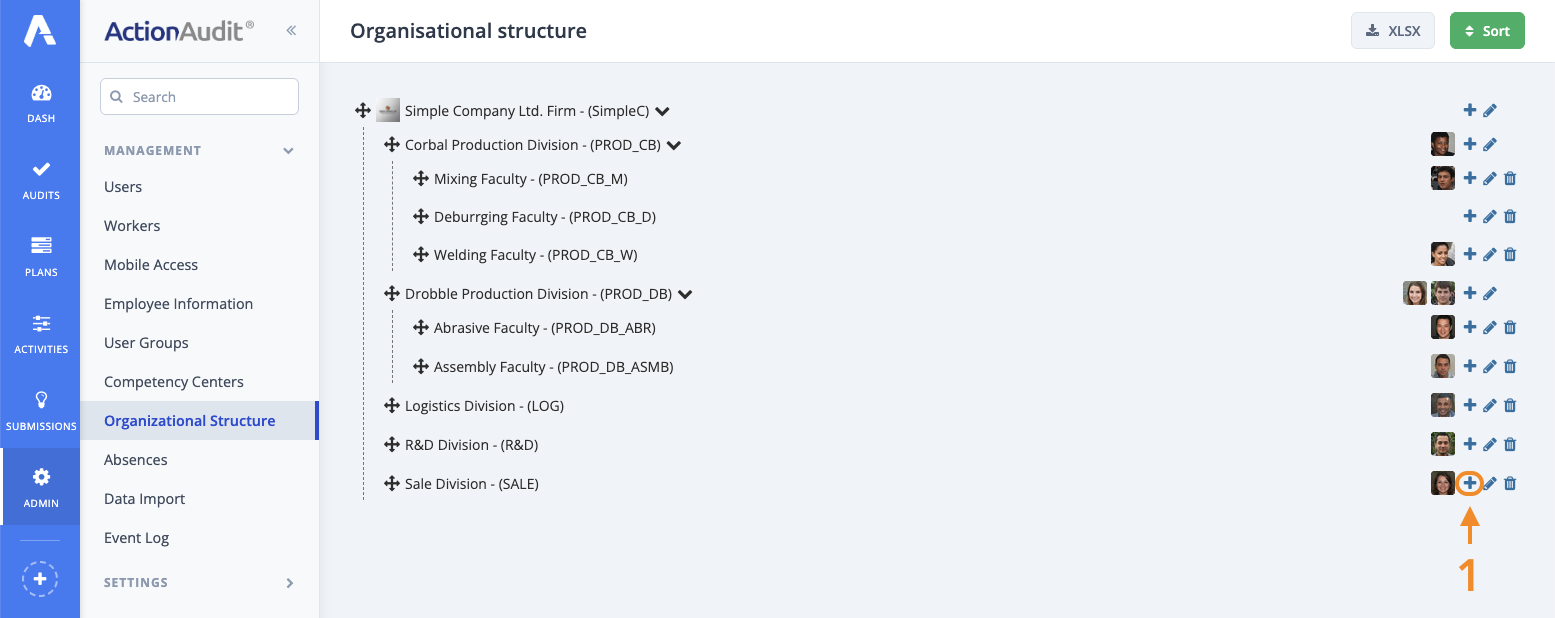
Adding new organizational cell
To add a new organizational cell, click the + symbol.
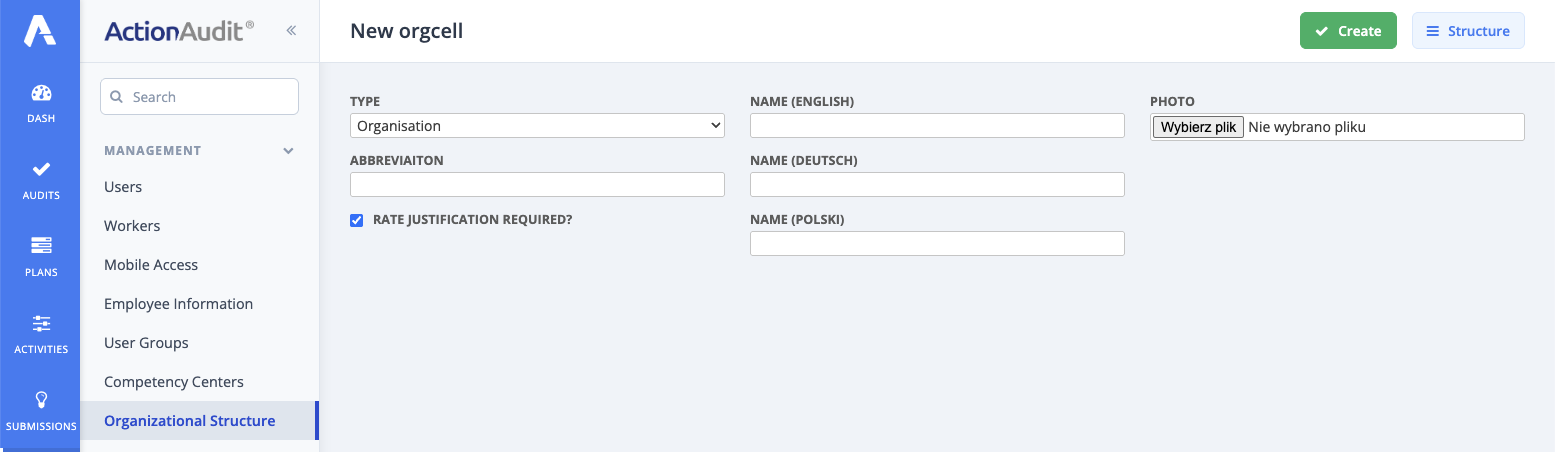
Complete the form and click the Create button.
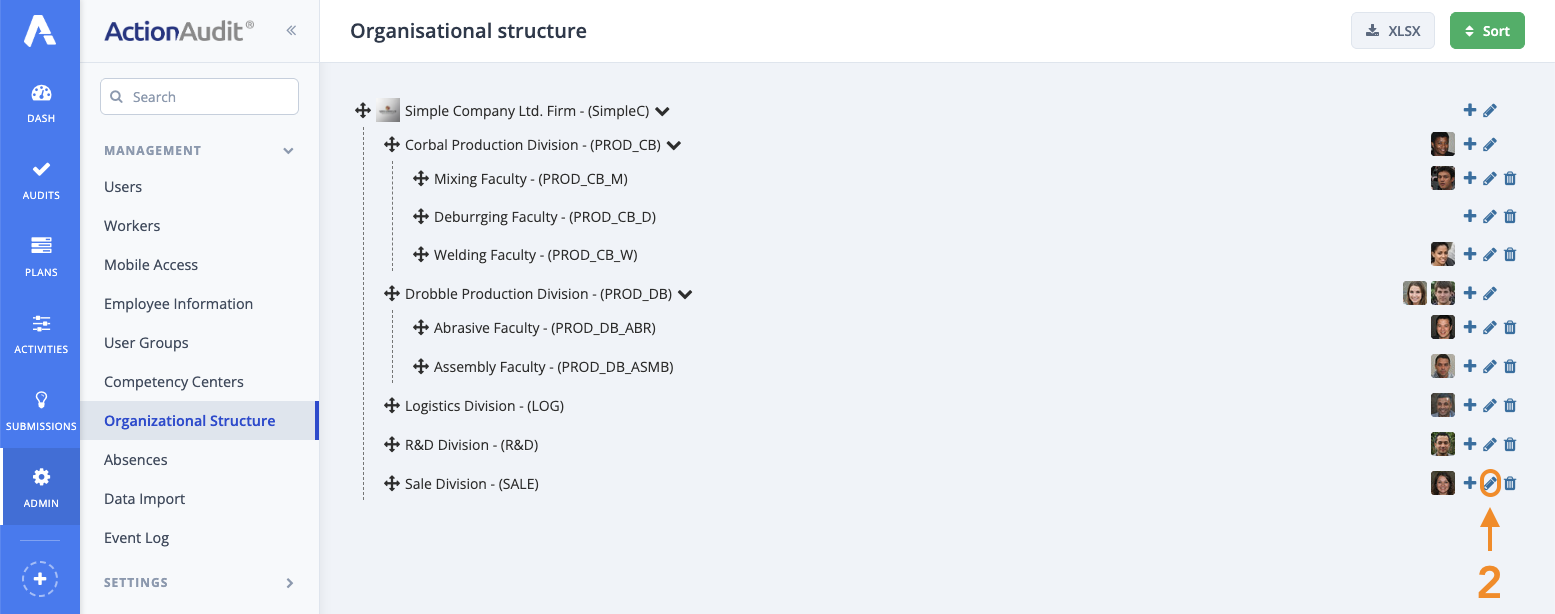
Editing organizational cell
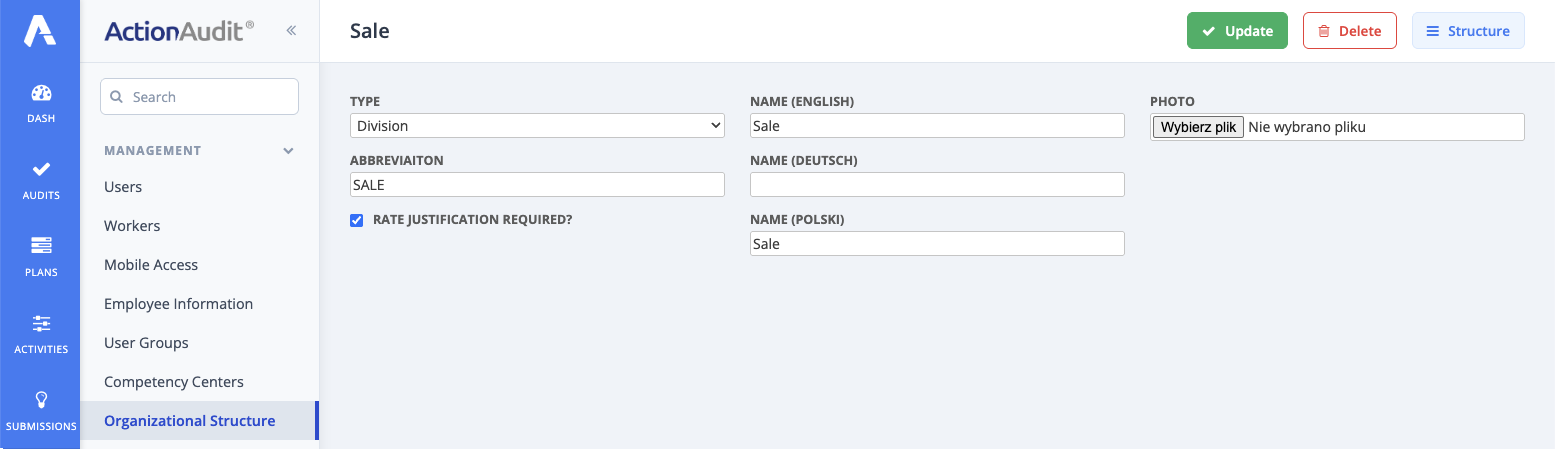
To edit a cell in an existing organizational structure, press the pencil symbol.
To save changes, click the Update button.
Removing organizational cell
To remove a cell from the organizational structure, press the trash can symbol.
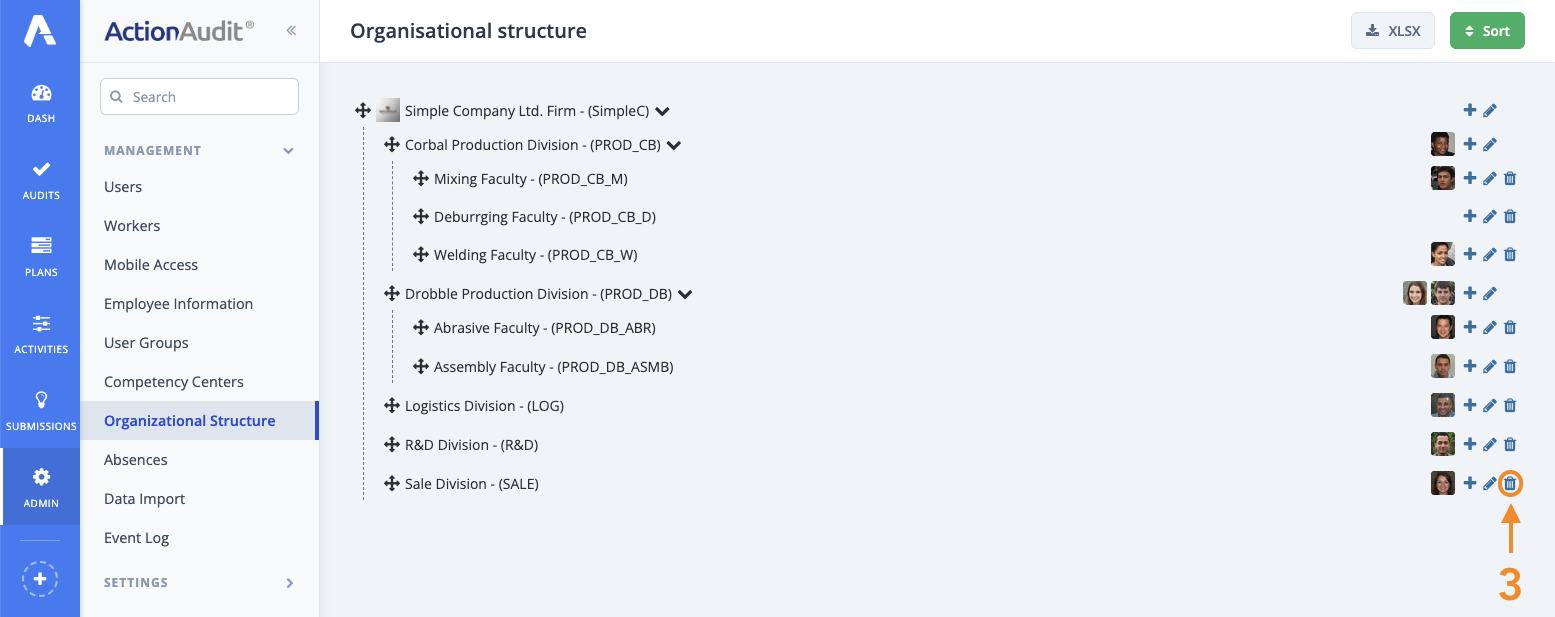
To confirm deletion of the cell, click Delete.

While deleting a cell, you can select a successor to which the records will be moved before deletion. To confirm the changes, select the successor and press the Move and Delete button.