Access to the Action Booth
Getting access
To gain access to the Action Booth, you need to have a Worker account in the main application system.
To obtain login details, contact the system administrator, who can retrieve them from the Administration tab in the Workers section.
Login
After opening the website, the following login screen will be displayed:
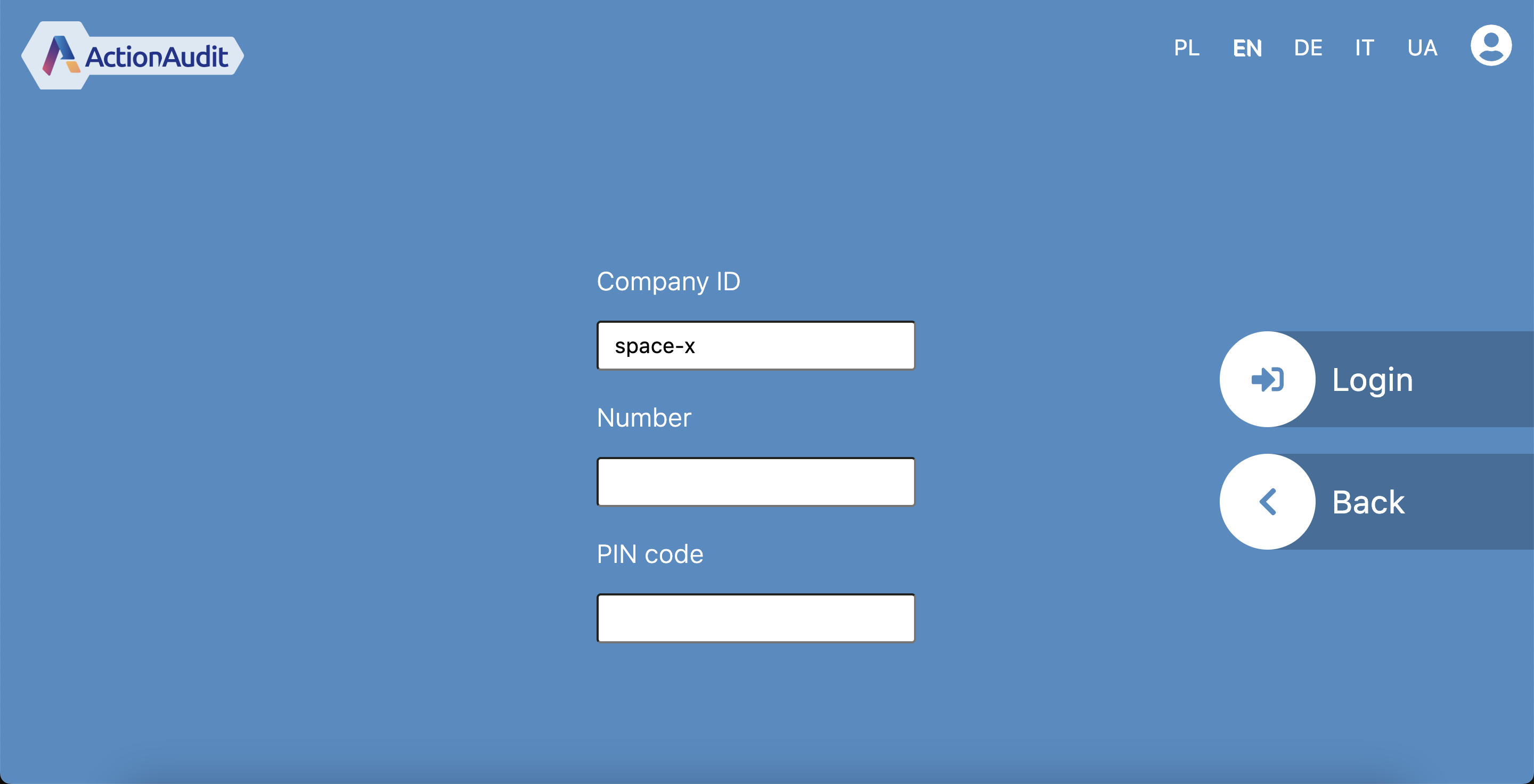
It consists of the following elements:
- Language change buttons – buttons located in the top right corner of the screen allow switching the application interface language. Available languages: Polish, English, German, Italian, Ukrainian.
- Company ID - a unique identifier for your employer. To obtain this, please contact your Action Audit system administrator.
- Number – a field to enter the employee’s ID number. To obtain this, please contact your Action Audit system administrator.
- PIN code – a field to enter the PIN code. To obtain this, please contact your Action Audit system administrator.
- Login – a button that allows you to log in.
Main menu
After logging in, the following main menu screen will be displayed:
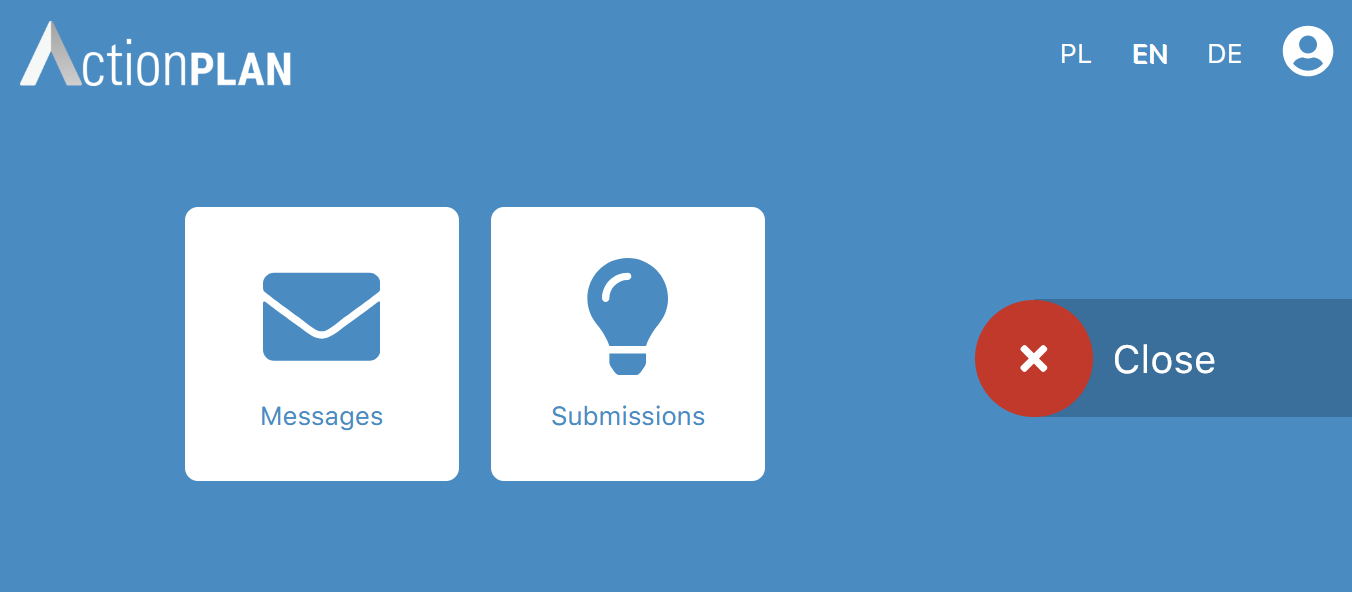
It allows the following actions:
- Messages module button – navigates to the messages module, where the user can view messages sent from the Action Plan system
- Submissions module button – navigates to the submissions module, where the user can submit their employee ideas and check the status of previously submitted ideas
- Close – button allowing you to log out of the application
- User icon – located in the top right corner of the screen and allows access to user profile settings
User profile settings
From the user profile settings screen, you can set a new PIN code. It looks as follows:
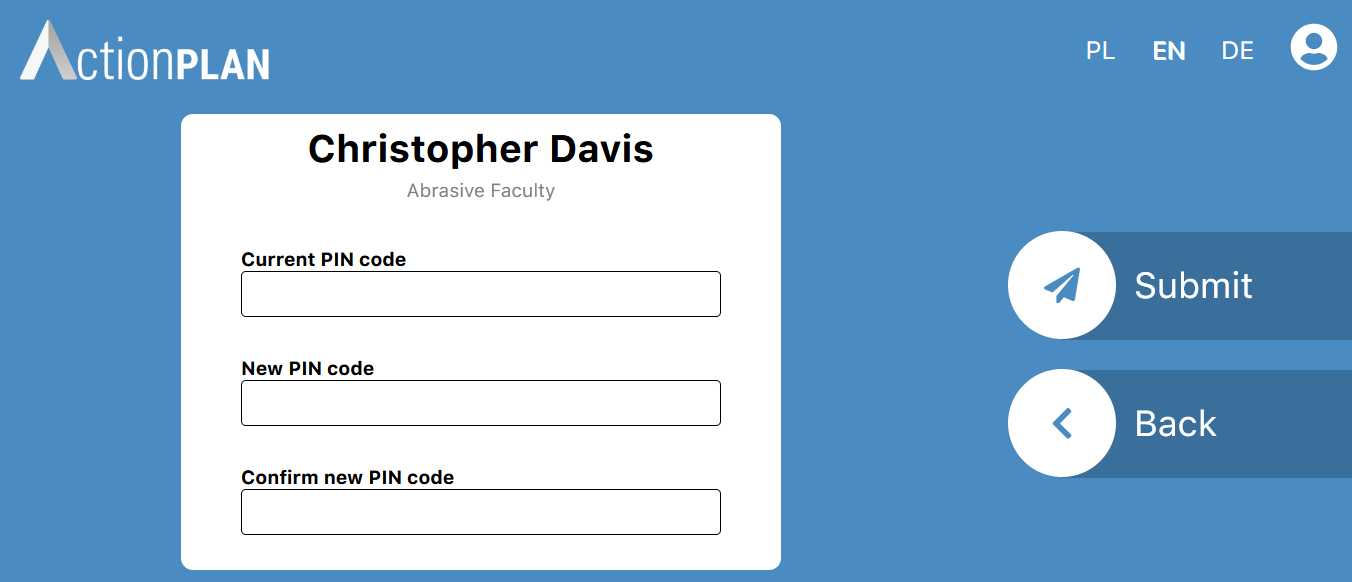
To change the PIN code, enter the current and the new code, confirm it, and press the Submit button on the right side of the screen.
To return to the main menu, press the Back button on the right side of the screen.